


Unfold: Story & Reels Maker
3.81.64K Reviews
App Specs
- Version
- 8.162.0
- Updated On
- License
- Free
- Downloads
- 10,000,000+
- Developer
- Squarespace Inc
- Categories
- Photography
- Platform
- Android
Screenshots
 Analysis by AppCompare
I tend to reach for a story-design app when I have good photos but no clear idea how to make them feel like part of the same post. Unfold: Story & Reels Maker is aimed at that moment: it gives me a structured canvas for arranging images and text, rather than asking me to build every slide from scratch. It’s a photography app from Squarespace Inc, and its focus is less on changing a single photo than on shaping a small visual sequence for social media.
A practical starting point for a story
My most useful workflow begins with the content, not the template. I pick the few photos or clips that belong together, decide what the post needs to say, and then choose a layout that gives those elements room. That order matters: browsing designs before I know what I’m making can turn a quick post into an aimless search through styles.
Once a layout is chosen, I place the media, adjust its position, and add only the text that helps the viewer understand the sequence. A short opening line, a detail on a middle slide, and a simple closing frame often work better than filling every available space. The template is most useful as a compositional guide, not as a reason to add decoration just because it is available.
This makes the app especially handy for a small business sharing a product, a traveler collecting moments from one day, or anyone who wants several images to look intentional together. It is less compelling if all I need is a quick crop, a color correction, or a single photo with a basic caption; a dedicated photo editor or the social platform’s own tools may get that job done with fewer steps.
Settings and choices worth checking
Before I settle on a design, I pay attention to how much space it leaves for the actual image. Some compositions put the photo first, while others make typography or borders a more noticeable part of the finished slide. If the image already has strong colors or a busy background, a quieter layout usually keeps the result readable without making me fight the design.
I also treat text as part of the layout rather than an afterthought. A font that looks attractive on one slide can become hard to read when the wording is long or the photo behind it is visually crowded. I keep copy brief, check alignment, and preview the whole sequence before exporting. That last pass helps catch an awkward change in visual rhythm, such as a heavily decorated slide between two simple ones.
Unfold includes templates and creative options, but the free starting point is enough to test whether its style suits your posts. The app is free to download, with in-app purchases ranging from $0.99 to $99.99 per item. I’d try a real project with the included options before paying: the useful question is whether the extra choices solve a recurring need, not whether a larger library sounds appealing in theory.
Worth Reading Before You Choose

Flipboard Shows What News Apps Must Do Beyond the Feed

Switching to Android Auto Means Rethinking Your Driving Routine

Google Calendar Makes a Crowded Week Easier to Manage

Ludo King Makes the Most of the Minutes Between Plans

Baby Panda World Brings Quick Play to Modern Phones, but Its Game Library Feels Busy

ESPN’s Live Game View Makes Following Close Games Easier
Repeatable habits that save time
For a post I make regularly, I keep the process consistent: gather the images first, use a familiar visual direction, and reserve a clear role for each slide. That habit reduces the temptation to redesign every frame independently. It also makes a set of posts feel connected without requiring identical photos or exactly the same arrangement each time.
A realistic example is a café owner preparing a short sequence about a new menu item. One image can introduce the dish, another can show a useful detail, and a final slide can carry a concise reminder or invitation. Rather than squeezing every selling point onto the first image, I’d give each frame one job and check that the sequence still makes sense when viewed quickly. That approach is more effective than adding extra stickers or text simply to make the post look busy.
For personal use, the same principle works for a weekend trip or a family celebration: select a handful of images that tell one small story, then use consistent spacing and restrained captions to connect them. If a frame feels crowded, I remove an element before shrinking everything. The trade-off is that a designed sequence takes more preparation than uploading photos directly, but the added structure can be worthwhile when presentation is part of the point.
Where the app fits—and where it doesn’t
I use this section to draw the line between a designed sequence and a quick photo fix, because that distinction is what makes Unfold feel worthwhile—or unnecessarily involved. I’ll also consider how much control its template-based approach gives me, so you can judge whether its structure would help your routine or get in the way.
What the editing experience does well
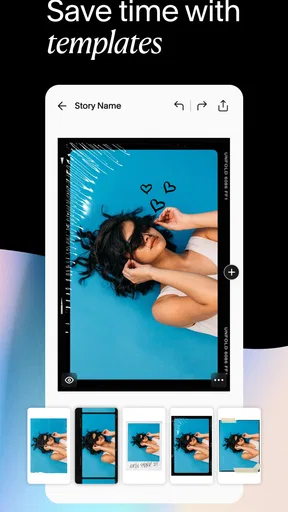
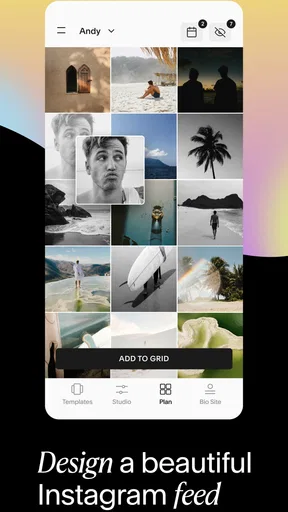
The app’s strength is the bridge between a camera roll and a composed social post. It offers templates, text styling, collages, and editing tools in one place, so I can assemble a visual idea without starting in a blank design program. The preview is useful because it lets me review the complete result before sharing or saving it, rather than judging each component in isolation.
That convenience has limits. A template-led workflow gives me a head start, but it can also make different posts look related to designs other people use. If I want a highly distinctive brand system, precise control over every graphic element, or complex image retouching, I’d use a more specialized design or photo-editing tool. Unfold makes more sense when I value a polished, ready-to-adapt layout over complete freedom.
It is also worth separating story design from publishing strategy. A clean sequence can make content easier to follow, but it cannot decide which moments deserve emphasis or whether the post is relevant to its audience. I still have to choose the images, check the wording, and make sure the final order tells a coherent story. The app helps with presentation; it doesn’t replace those editorial decisions.
Who will get the most from it
I’d recommend it to people who post visual updates often enough to appreciate reusable design habits: creators sharing process, small shops presenting products, and casual users who want travel or event photos to feel more considered. It is also a reasonable place to start if a blank canvas feels intimidating but a fully automatic filter is too limiting.
I’d skip it if I rarely make multi-image posts, prefer a completely unstyled look, or need detailed retouching as the main task. In those cases, the extra design stage may feel like friction rather than help. Someone who already has a precise workflow in a professional design editor may also find the template approach less flexible than the tools they know.
Compared with editing directly inside a social app, Unfold gives the composition more attention and makes it easier to think through a sequence before posting. The trade-off is moving between a separate creation step and the platform where the audience will see the content. Compared with a general-purpose design app, it is more focused on social storytelling, while a broader editor may offer more room for custom layouts. I’d choose based on whether speed and ready-made structure or fine-grained control matters more for the project.
Small checks that prevent avoidable rework
Before exporting, I review the slides in order and look for three things: legible text, consistent visual weight, and a clear beginning and ending. I also check that no important part of a photo is hidden by a frame or text placement. These checks are simple, but they catch the kinds of problems that are easy to miss while concentrating on one slide at a time.
If I’m making several posts, I decide on a restrained set of choices early—such as a recurring type style and a similar amount of white space—then vary the image arrangement where the content calls for it. This is a useful middle ground between repeating one template mechanically and reinventing the look every time. It creates a recognizable feel while keeping the photos in charge.
One practical question is whether I can finish a post without buying anything. Yes: the app is free to download, and I can begin with its free templates; purchases are there for people who want additional options. Another is whether it suits occasional users. It can, but the benefit is strongest when I have a sequence to arrange, not when I only want to make one minor adjustment to a picture.
A considered recommendation
Unfold has an average rating of 3.8 from around 176,000 ratings, and it has been installed over 10 million times. It is rated for Everyone, first released on April 19, 2018, and its current version is 8.154.1, with Android 10 as the minimum operating system. Those figures give a sense of its reach, but my recommendation depends more on the kind of editing I actually do: it is a focused option for people who like arranging stories, not a universal replacement for every photo tool.
My overall view is that Unfold is most worthwhile when I want a dependable starting structure and am willing to make a few deliberate choices about images, spacing, and text. Its templates can help a post look cohesive, while its separate workflow asks for a little more planning than publishing straight from a social app. I’d use it for a product sequence, a trip recap, or a small collection of personal moments; I wouldn’t open it for every isolated photo.
If you’re deciding whether to try it, make one real post with the free options and judge the result against your usual method. Notice whether the layouts save time, whether the text remains easy to read, and whether the finished sequence still feels like yours. If those things matter to you, it’s a useful addition to a social-content routine. If you mainly want fast edits or unrestricted design control, another kind of editor will likely suit you better.
Getting Started with Unfold
First things first, let's talk about getting this bad boy set up. Unfold is available for both Android and iOS, making it super accessible. Once you download it, you'll find a clean and intuitive interface that welcomes you with open arms. No complicated menus or overwhelming options here—just straightforward navigation that even the least tech-savvy among us can handle.
The app offers a selection of free templates, and if you're feeling fancy, you can unlock premium options with a subscription. But honestly, the free templates are pretty snazzy and versatile. I was able to make some stunning stories without spending a dime.
Designing Your Masterpiece
Alright, let's dive into the fun stuff—creating your story or reel. The templates are categorized into collections, making it easy to find a style that matches your vibe. Whether you're going for minimalistic elegance or a bold statement, Unfold has got you covered.
Adding photos and videos is a breeze. You can resize and position them just the way you like, and the app's drag-and-drop functionality makes it feel like you're working with a professional design tool. Plus, there are tons of fonts and stickers to choose from, allowing you to personalize your stories even further.
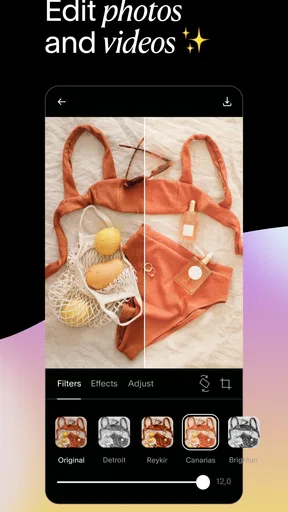
If you're into aesthetics, you'll appreciate the color palettes and filters available. They can transform a simple photo into something that looks like it belongs in an art gallery. I found myself experimenting with different looks and feeling like a pro designer in no time.
Features That Stand Out
One of the standout features is the ability to preview your stories and reels before publishing. You can see exactly how they'll look when posted, which is a lifesaver for those of us who are a bit picky about aesthetics.
Another cool addition is the text editor. It's not just about slapping some words on an image—Unfold lets you play with typography in a way that's both fun and functional. You can adjust spacing, alignment, and even add text animations for that extra pop.
Did I mention the ability to add background music? Yep, you can choose tracks that enhance the mood of your story or reel, making your posts more engaging and dynamic.
Sharing Your Creations
Once you've crafted your masterpiece, sharing is as simple as a tap. Unfold allows you to post directly to Instagram, Facebook, and other platforms, or you can save your creations to your device. The quality remains top-notch, so no worries about pixelation or losing that beautiful design.
For those who love to keep their content fresh, Unfold regularly updates its template library. This means you'll always have access to new designs and features to keep your stories and reels looking current and unique.
Final Thoughts
In a world where visual storytelling is king, Unfold: Story & Reels Maker is a must-have tool. Whether you're a casual user wanting to spruce up your social media or a brand looking to create professional content, this app has something for everyone. It's user-friendly, packed with features, and offers a level of customization that makes your stories truly yours.
So, if you're ready to take your social media storytelling to the next level, give Unfold a try. You'll be amazed at how easy it is to create eye-catching content that stands out in the crowded digital world. Trust me, your followers will thank you!
Pros
- Easy-to-use interface for quick story creation.
- Wide variety of templates for creative freedom.
- High-quality export options for professional results.
- Regular updates with new design elements.
- Supports both photo and video content seamlessly.
Cons
- Some features require a premium subscription.
- Limited customization for certain templates.
- Occasional app crashes with large projects.
- Export quality can vary across devices.
- No direct integration with all social media platforms.
FAQs for Unfold: Story & Reels Maker
What features does Unfold: Story & Reels Maker offer?
Unfold provides a variety of templates and design tools for creating visually stunning stories and reels. Users can customize layouts, fonts, and colors to fit their brand or personal style. The app also offers photo and video editing features, allowing for easy integration of multimedia elements into your stories.
Is Unfold free to use, or are there any in-app purchases?
Unfold offers a free version with basic features and templates. However, for users seeking more advanced tools and exclusive templates, there are in-app purchases available. This includes a subscription plan called Unfold+, which provides access to premium content and features for a monthly or yearly fee.
How user-friendly is Unfold for beginners?
Unfold is designed with an intuitive interface, making it accessible for beginners. The app provides a seamless experience with easy-to-navigate menus and straightforward editing tools. Even users with little to no design experience can create professional-looking stories and reels using the app’s guided templates.
Can I use Unfold to create content for platforms other than Instagram?
Yes, Unfold is versatile and allows users to create content for multiple social media platforms beyond Instagram. The app’s templates and design tools can be used to craft stories and reels suitable for platforms like Facebook, Snapchat, and TikTok, broadening its utility for diverse social media strategies.
Does Unfold require an internet connection to function?
While some features in Unfold can be used offline, such as basic editing and template usage, a stable internet connection is required for downloading new templates, accessing cloud services, and sharing your completed stories or reels directly to social media. It ensures you have full access to all available features and updates.


